
First, we fixed our 24-pin ribbon printer. But, is it WORTH it?
Earlier this month, we fixed the Okidata 395 printer, which was the successor to the 393. The 393, of course, is Okidata's 24-pin series designed to handle a continuous business environment printing dating back to as early as 1983 (ours had a power supply dating around 1987). It was the very first printer we not only repaired but were certified to repair at an Okidata site in Wisconsin.
Oddly enough, not many businesses we knew had such a printer. They either used the ultra-cheap 320 9-pin printers or just went over to a hammer-matrix printer.
But it's time to ask the question: What does it do? How well does it do it?
Is this something businesses could still use today? Or is this a relic of the past that collectors would get just to fill the room with that aesthetic of the 1980s, where shit was just loud as fuck. Read onward for those who care.
Why the second article?
The first one about repairing the printer was admittedly getting kinda long. Just wanted to break it into two subjects—repair and use.
which is why we're bringing over a paragraph from our last article talking about the ribbon cartridges we got with this Okidata 395.
The two cartridges.
This printer actually came with two cartridges. Both were probably 10+ years old, and one had no ink coming out of it; the other was a little dry but still readable. We're going to call them "Dry-Boi" and the one that doesn't print at all. As for "Juicy-Boi," we'll hit with a few sprays of WD40 as the ribbon ink used is a type of oil closest representing the stuff you find in stamps. And since the oil dried up, adding oil revives the process.
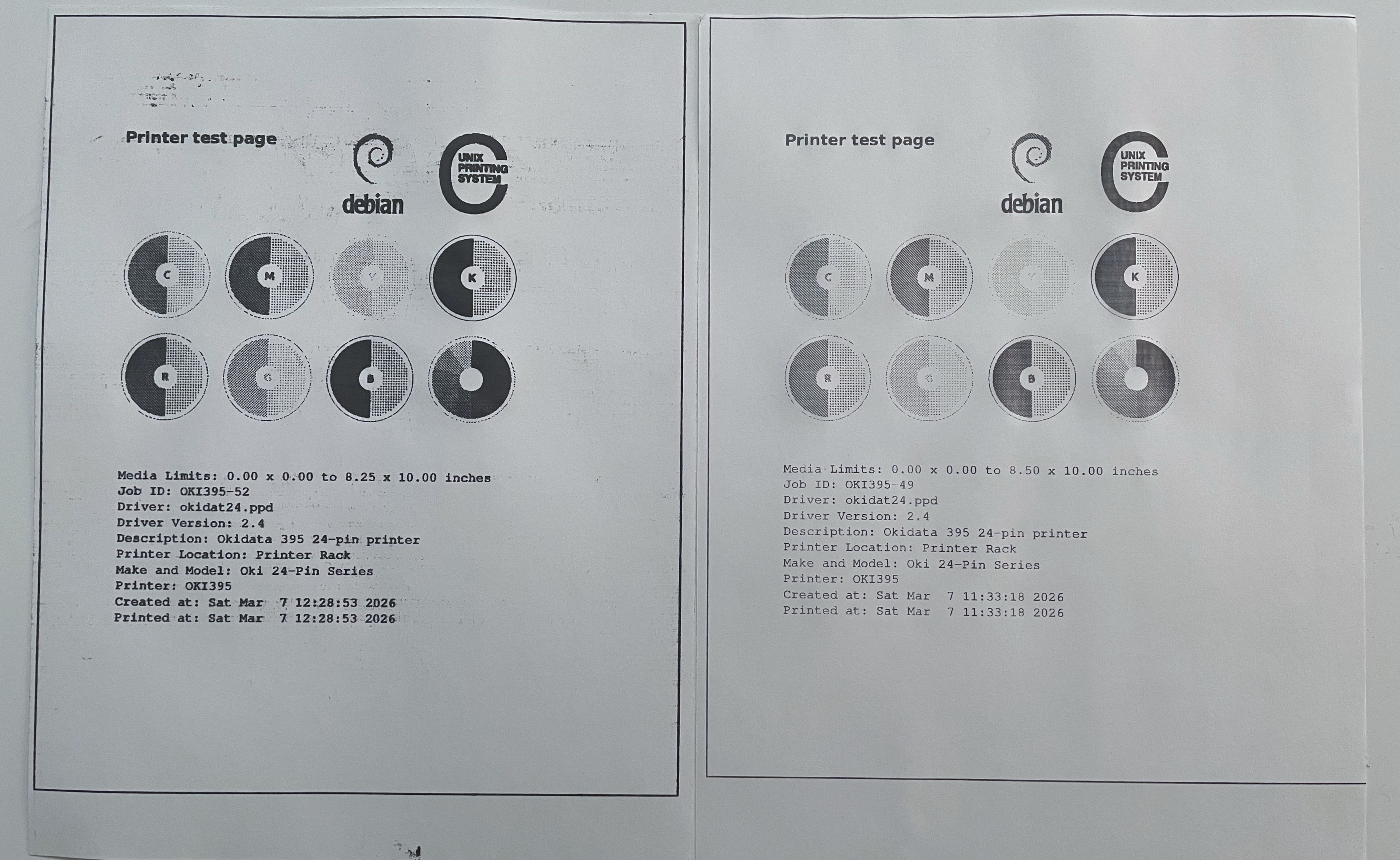
Both cartridges have their defects:
- Juicy boi on the left has really terrific, solid blacks; it's lying down. But we're losing detail from all of that ink coming down. On top of that, the ribbon is so juicy that it's actually scraping against the paper. This is even with our platen adjusted farthest away from the roller at #9. The solution for Juicy Boi is perhaps we need to set it outside for a few hours so Juicy Boi can dry up a little! Because we used too much WD-40, the only recourse is to put it back on the shelf for a few years to see if it calms down.
- Dry-boi, on the other hand, is super-clean on the paper with the platen at #5. But because it's not juicy at all, it's lighter and you get some horizontal banding.
Both are readable. But Dry-Boi is more controllable than the Juicy.
Let's be real. Time for a "Fresh-boi!"
Neither cartridge is giving us a perfect testing scenario that a business would. When a cartridge dries, a business does not fuck with said cartridge. They buy a new one. But unlike the 320, 321, 390, and 391 cartridges, you can still get them new for about $10-18 (for 3 million characters). The pricing on these cartridges is wild. Anywhere from $9 all the way up to $105. To their claim, one cartridge is good for 5 million characters.
Wait.. What the fuck?!?!? This cartridge is 8 times larger than an Okidata 320, and can only promise an additional 2 million characters? Sheesh, no wonder why this printer didn't get the popularity of the others. Even the 391, that's also a 24-pin printer.
But as we're doing graphical mode all of the time, where the paper is struck several times and sometimes heavily. But factoring in an average manuscript has about 1,800 characters per page, this cartridge should expire in about 2,777 pages. Which would be rather pathetic. But again, this is if we went full bore on graphics all of the time.
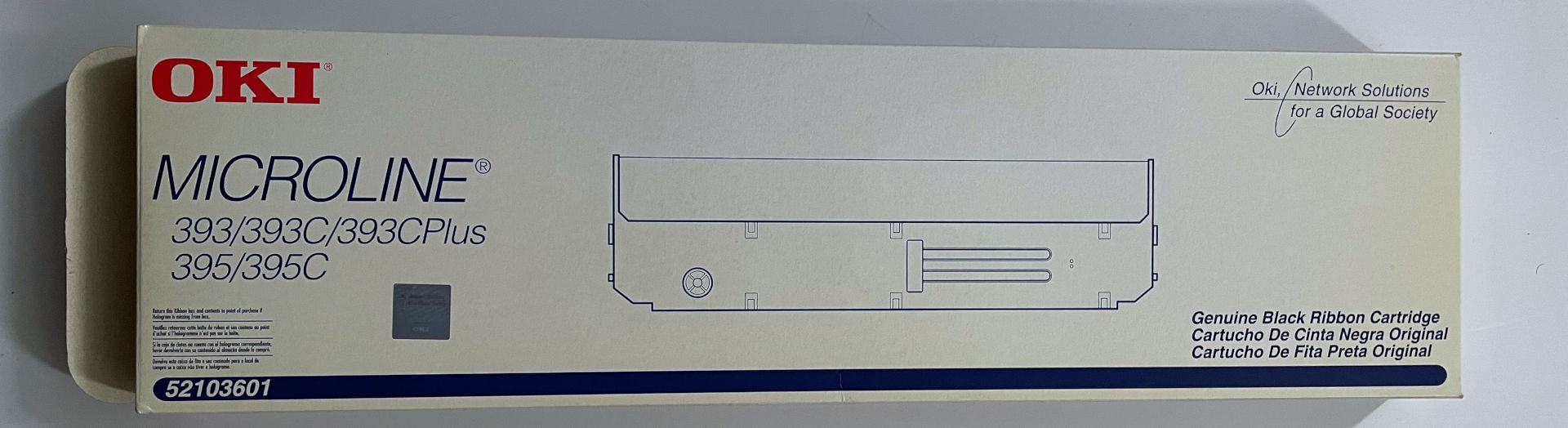
We didn't pay $105 USD. We paid $18 USD with shipping and handling because this is classified as NEW-(old stock), meaning it was sitting on a shelf for years, and the company wants it off their shelf. Even though the picture doesn't show it well. It has the holographic sticker claiming to be authentic. So far so good!
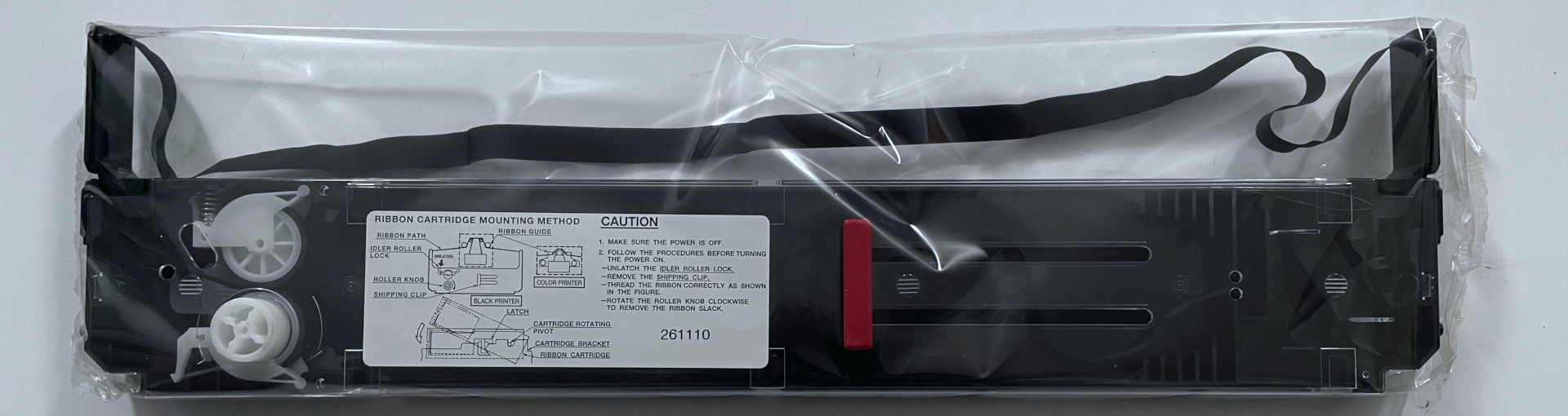
It's still in plastic, which is WHY these cartridges tend to have a good shelf life even well past their expired manufacturer date. So, we take it out of the plastic, pull the red saftey clip out tighten the ribbon, and -
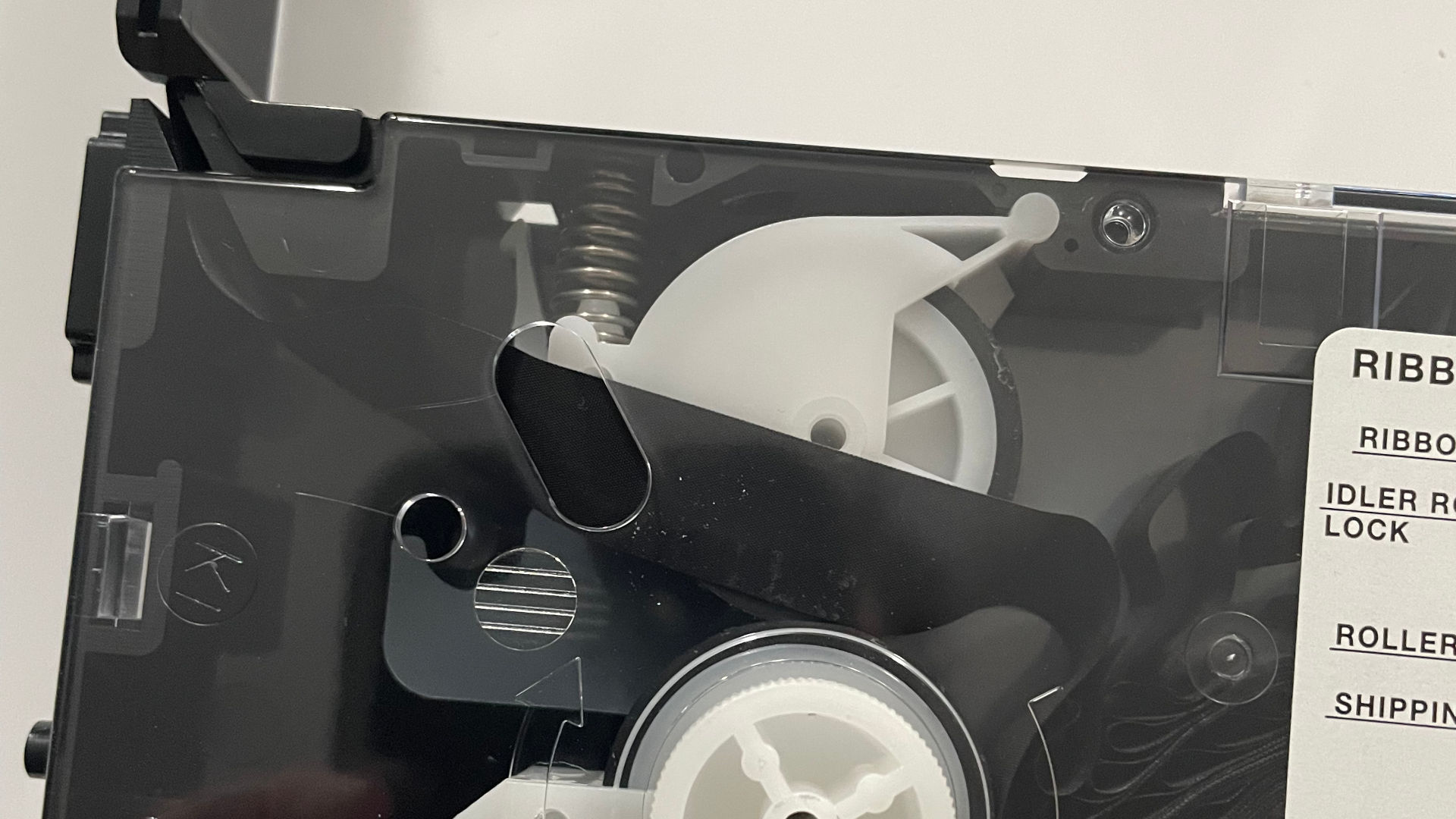 Oh fuck....
Apparently, that part of the ribbon dried out enough that the track simply slipped out of position. Using some tweezers, we got the ribbon re-aligned and flowing properly again. Once the rollers received some more ink from the Nylon Ribbon, the cartridge stopped jumping off track and simply stayed.
New ribbon print test.
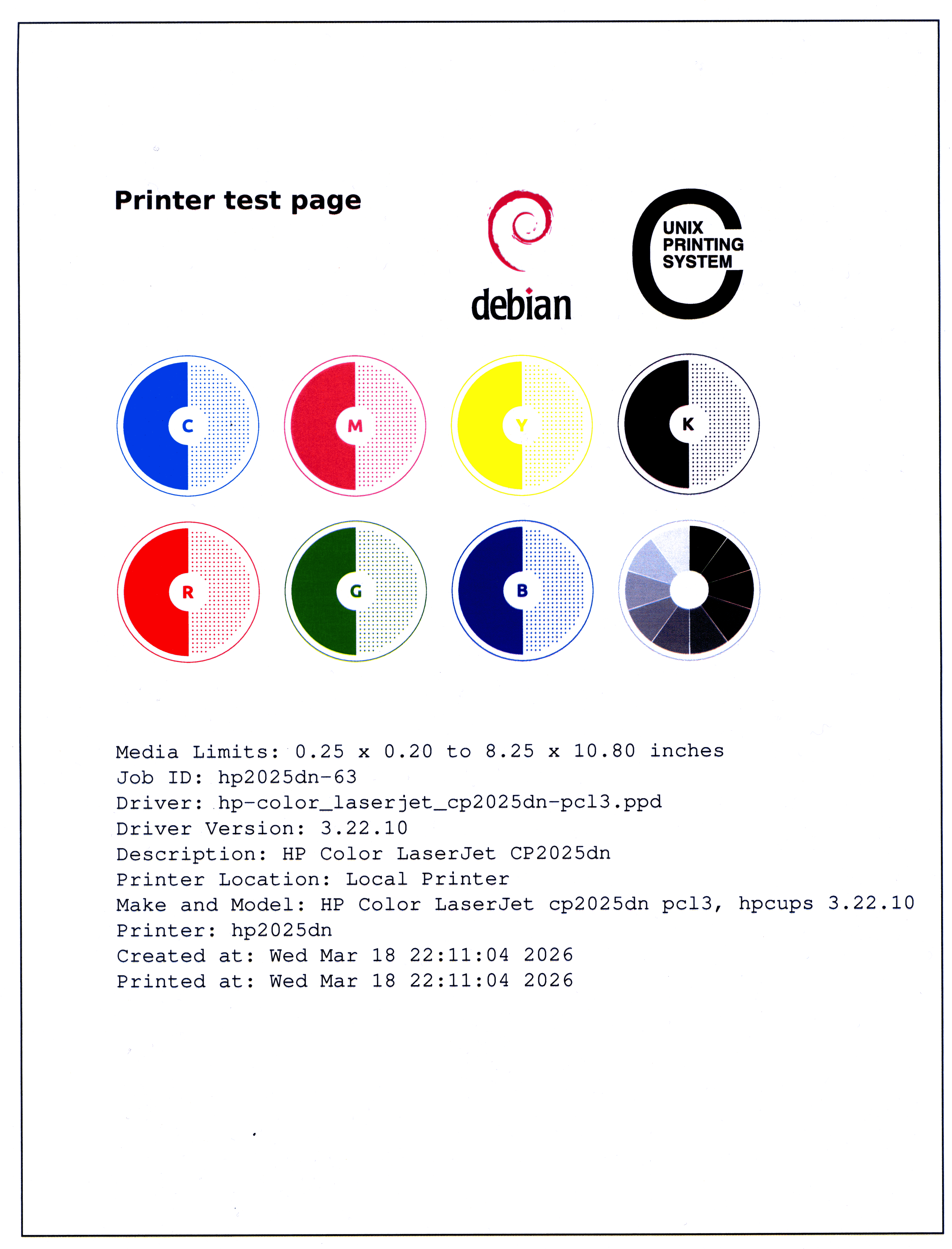
Going to use our flatbed scanner set for 600dpi for these tests, so you can really zoom into the pics if you care. As for the ribbon printers, CUPS drivers, I could only stabilize print at 180x180, even though technically this printer should go 360x360. But you know what? 180x180 is totally fine too, as it would be a little more standard capabilities test of a ribbon printer.
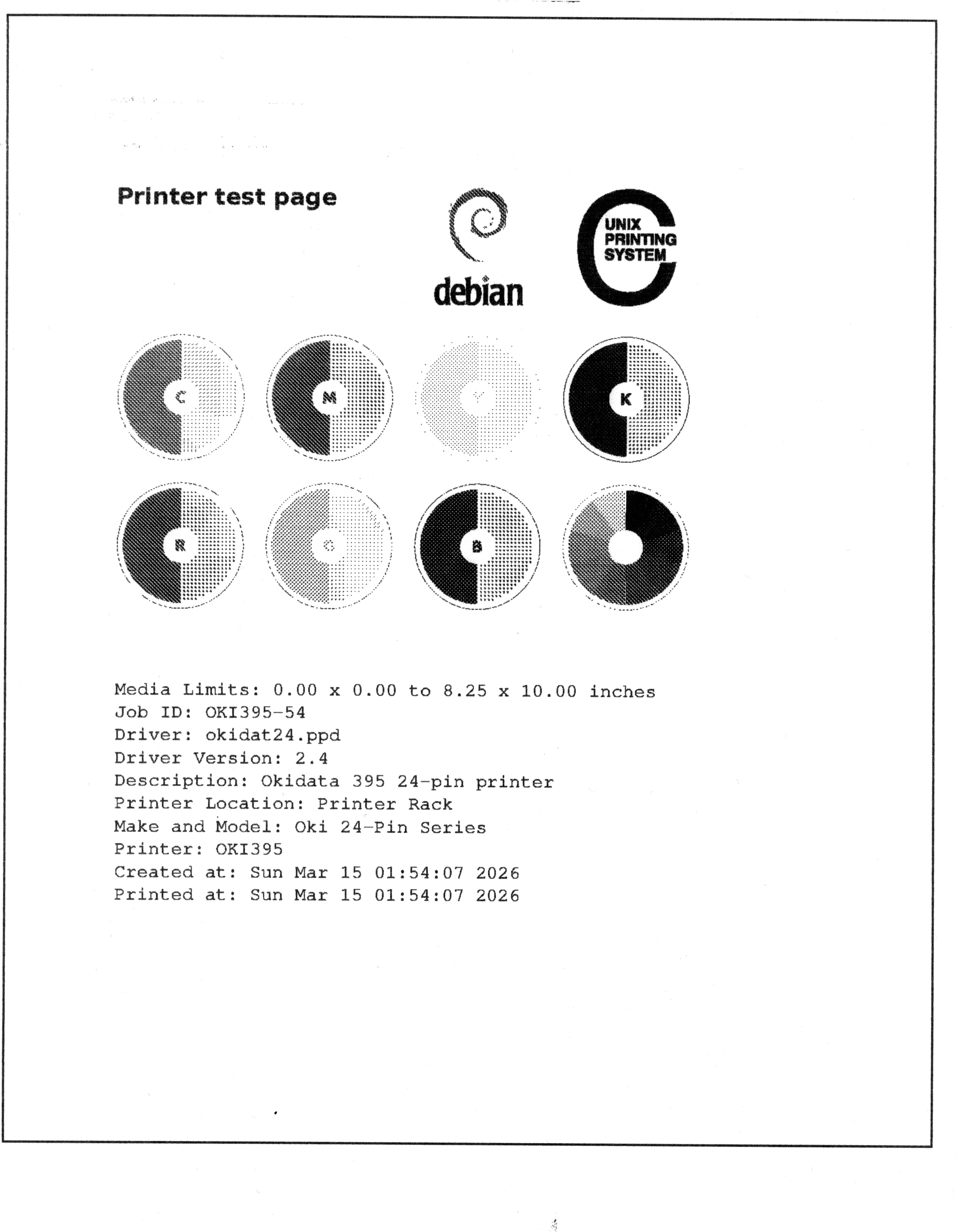
We have to give the CUPS team credit for making an excellent print-test page. As it shows the settings, the registration boundaries, and everything! If you see a little at the top there's slight head-striking going on. It's because we still had it set for #5 on the platen gap. It quickly disappears on the next pages afterwards. Also, one of the "FUN" things about using the manual feed function on the Okidata Ribbon printer. is that you have to adjust the registration yourself. Part of this was our own damn fault for not centering this perfectly before printing.
For dithering color to black and white, we'd say the Okidata did a damn good job.
Something of note here. We are using the manual feed tray on the Okidata 395, which is due to the nature of how paper feeds into this. We lose an inch near the bottom of the page. If we were to use tractor feed paper, we could easily print the full 11 inches. But the downside of tractor feeding is that you generally want to get all of your printing done in advance, as the last page you form feed to tear off, sacrificing a page on small jobs.
If you zoom in enough, you can see the borders along the sides jitter by about 0.2-0.5mm, which for a ribbon printer is rather nice. Also, horizontal registration from paper advancement is very on-queue as well.
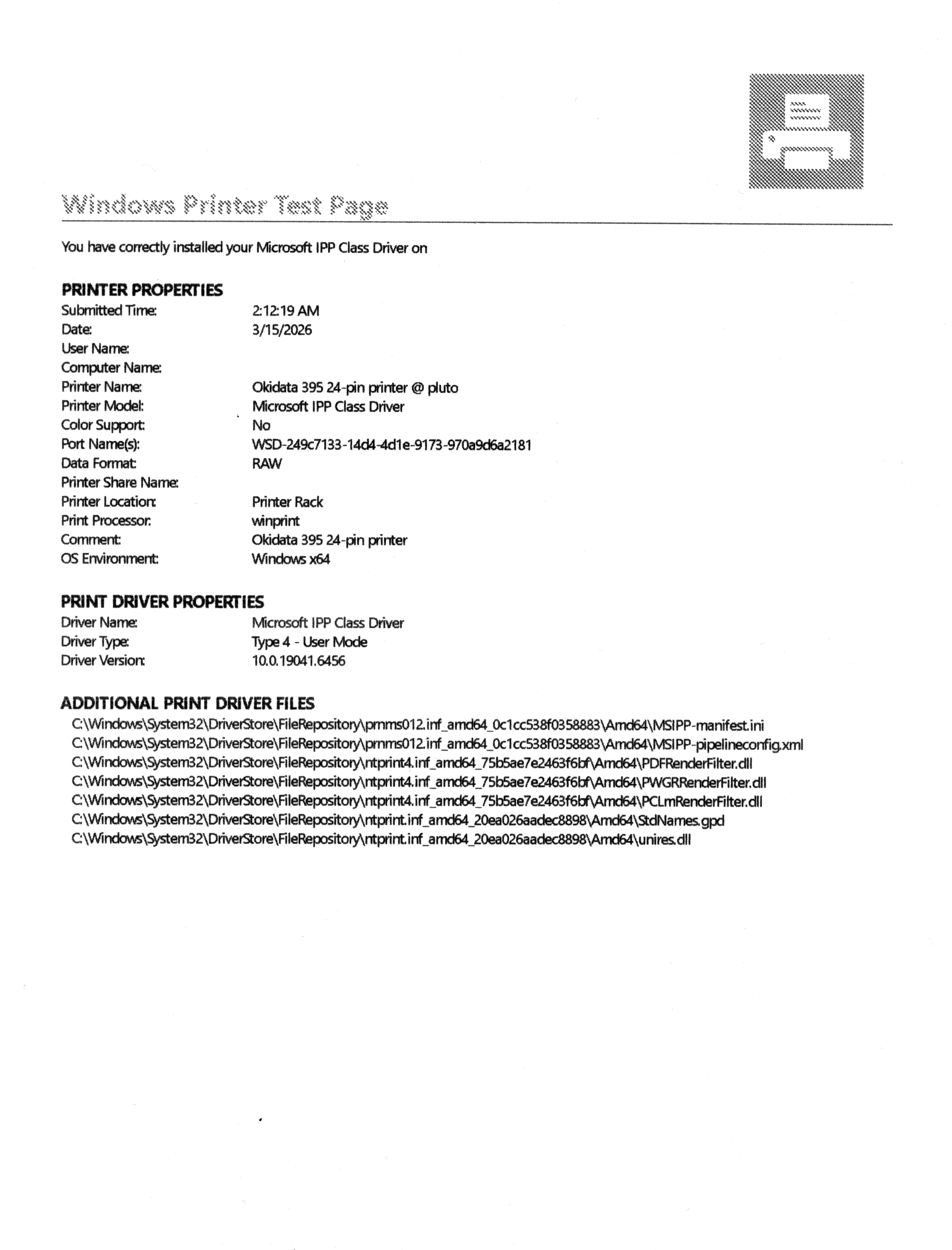
Straight out of our QEMU instance, we so happen to have a Windows 10 OS loaded, and it was able to immediately link up to my Raspberry Pi CUPS server and download the IPP class driver for my Ribbon Printer. Allowing us to produce this text page. Despite the font that Windows has chosen for the printout of the driver files, it's still readable despite the fonts touching each other.
Shipping test.
Let's give this ribbon printer something it's not designed to do. MORE GRAPHICS!
This test is somewhat within the printer's reach. Because a shipping label is generally around 200x200dpi... The current printer drivers we have been installed may not accomplish. even if we magically got the 360x360 working. We would feel that the ink from the print would only further blur the image.
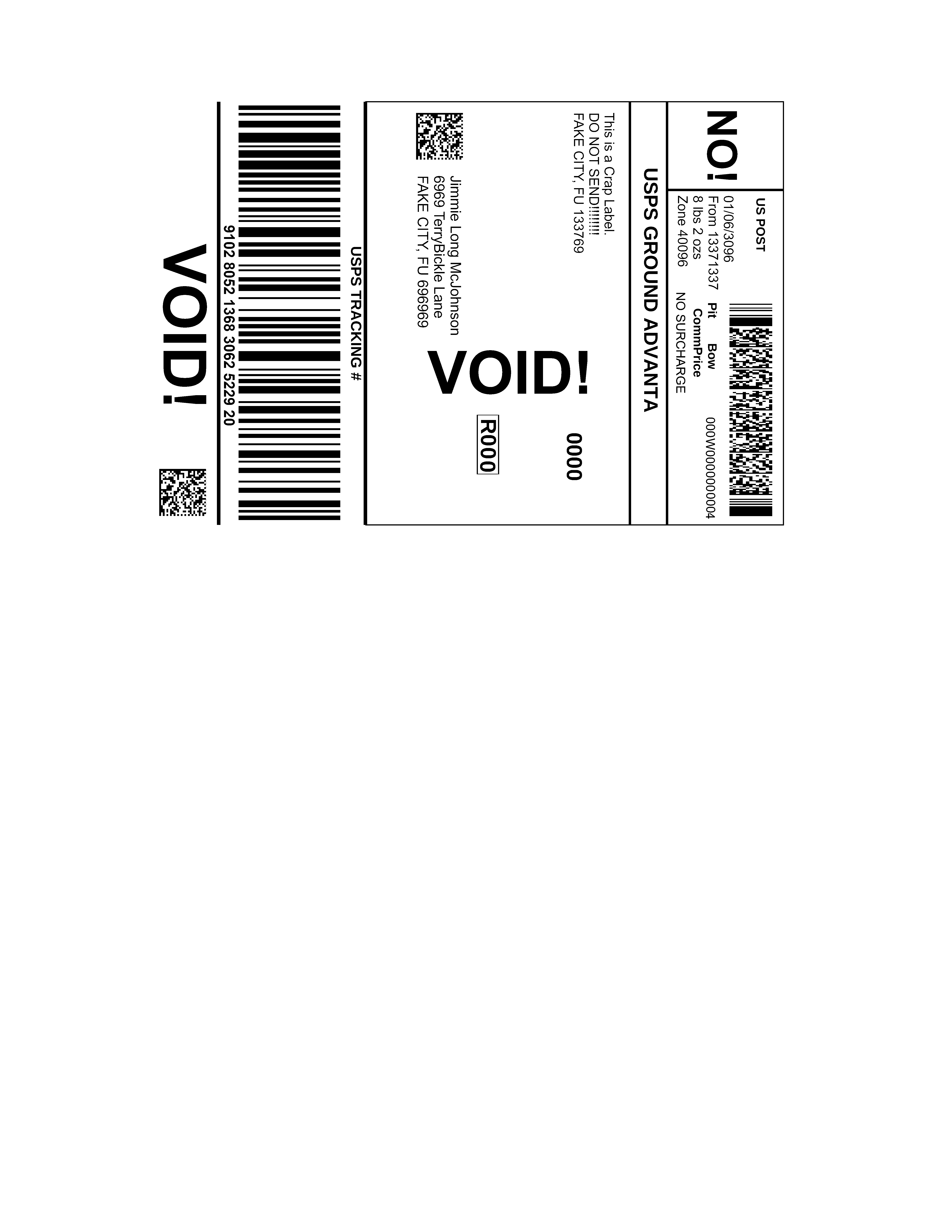 Here's the label we usually get from eBay.. Well! Not precisely the label. As you can clearly see, we edited it a LOT to ensure it's not a real label but close enough, as eBay likes using datamatrix codes in the footer and address portion of the label, which effectively says the same thing as the code 39. Even though all of the labels are changed out, we made sure the matrices on each of the labels were equally complex.
It's just a matter of scaling it down to 180dpi with your favorite paint program and sending it right over to the Okidata 395.
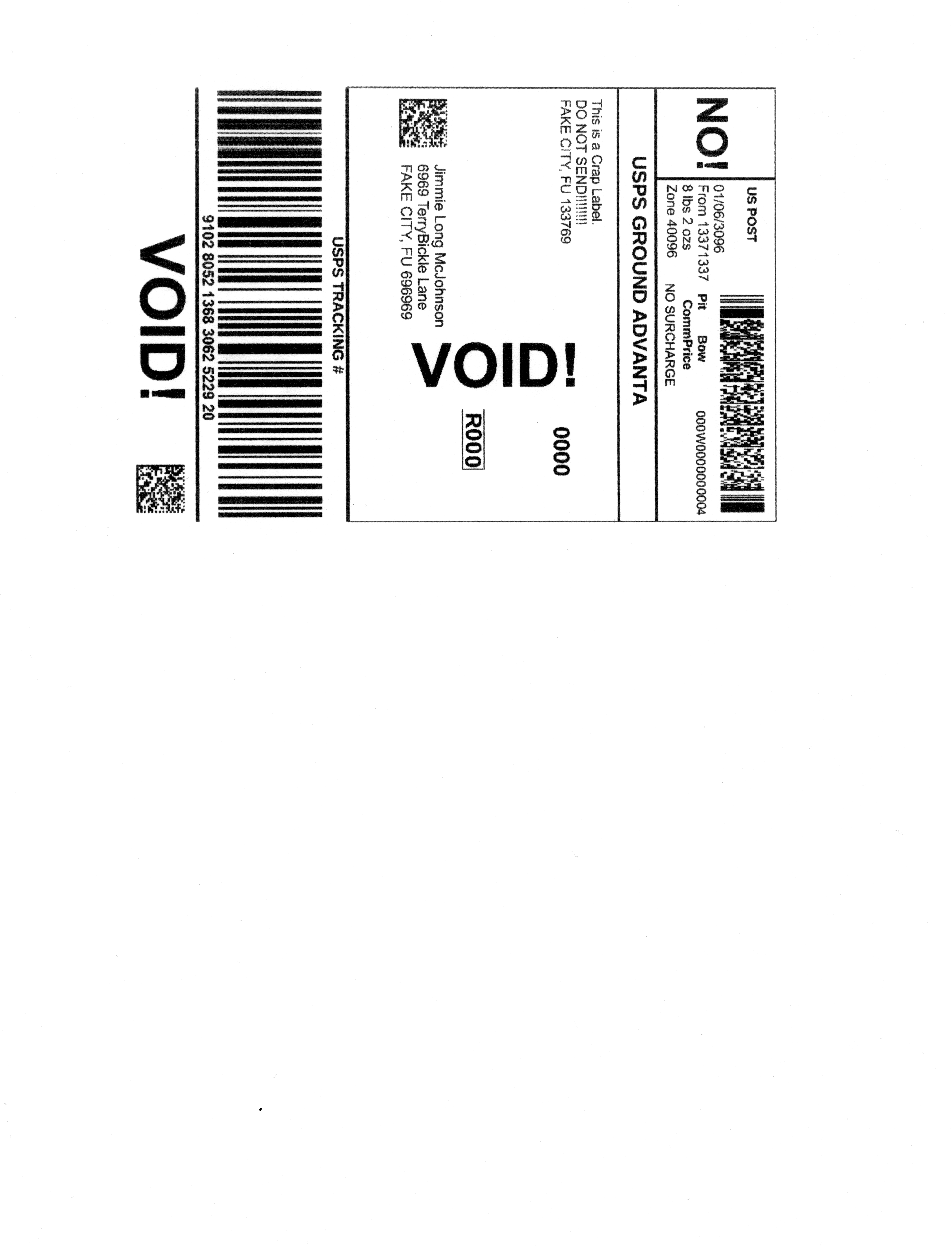
This was printed, then re-scanned at 600dpi for a quality check.
Believe it or not. It passed! All of the barcodes still scan without issue. Although if we were to use a 24-pin printer in this manner. We would probably rotate the label so that horizontal registration doesn't corrupt the Code 39 barcode below. If you zoom in super close, you can see a slight void in some of the larger barcode blocks where the printer advanced the paper but didn't give it complete coverage.
So without changing the size of a 4x6 label. This ancient 24-pin printer could take over in the event that a thermal printer were to take a total crap. Now, to ENSURE it will print every dot accurately. We could probably size up from a 4x6 label. especially if you were using Avery half-page labels. However, that tends to piss off postal employees, as now they have to barcode scan from a distance.
Other office work.
Besides packing slips, which look great on this printer. One of the other things we like to do on a printer like this is to print out hard drive SMART data. Sometimes we get buyers for various platter hard drives for that 'authentic' experience. Yeah, confusing. But people like official IBM drives for their IBM servers, disregarding that a Samsung SSD would've saved them a boatload of time. From our X3200 sleeper PC mod. Selling the hard drives is like the gift that keeps giving.
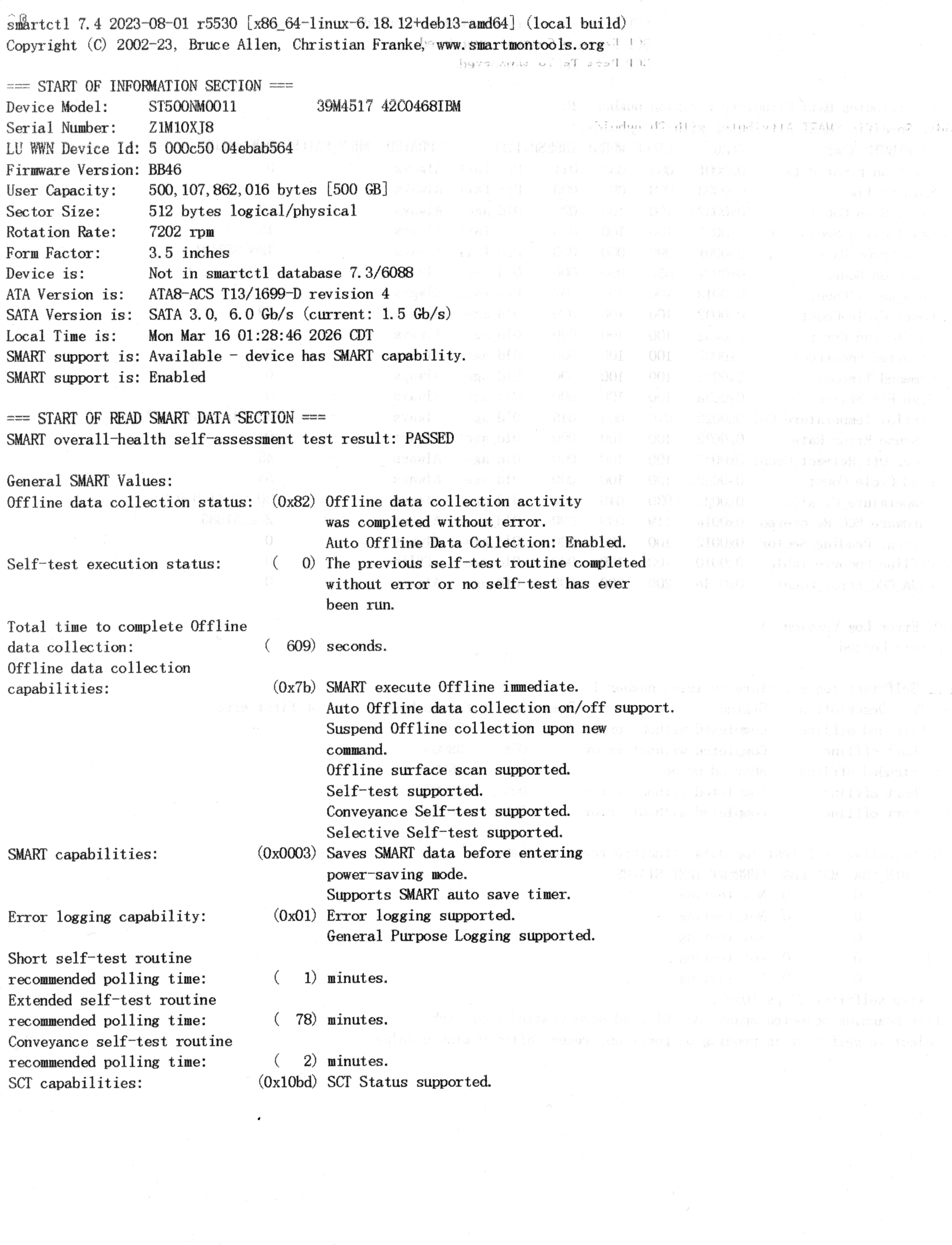
Did some double-sided printing by sending page 1 from Libre Office to the printer, flipping, and then sending page 2. It worked. But the copy paper we were using is a little thin for this kind of ink, and thus, bleed-over is apparent.
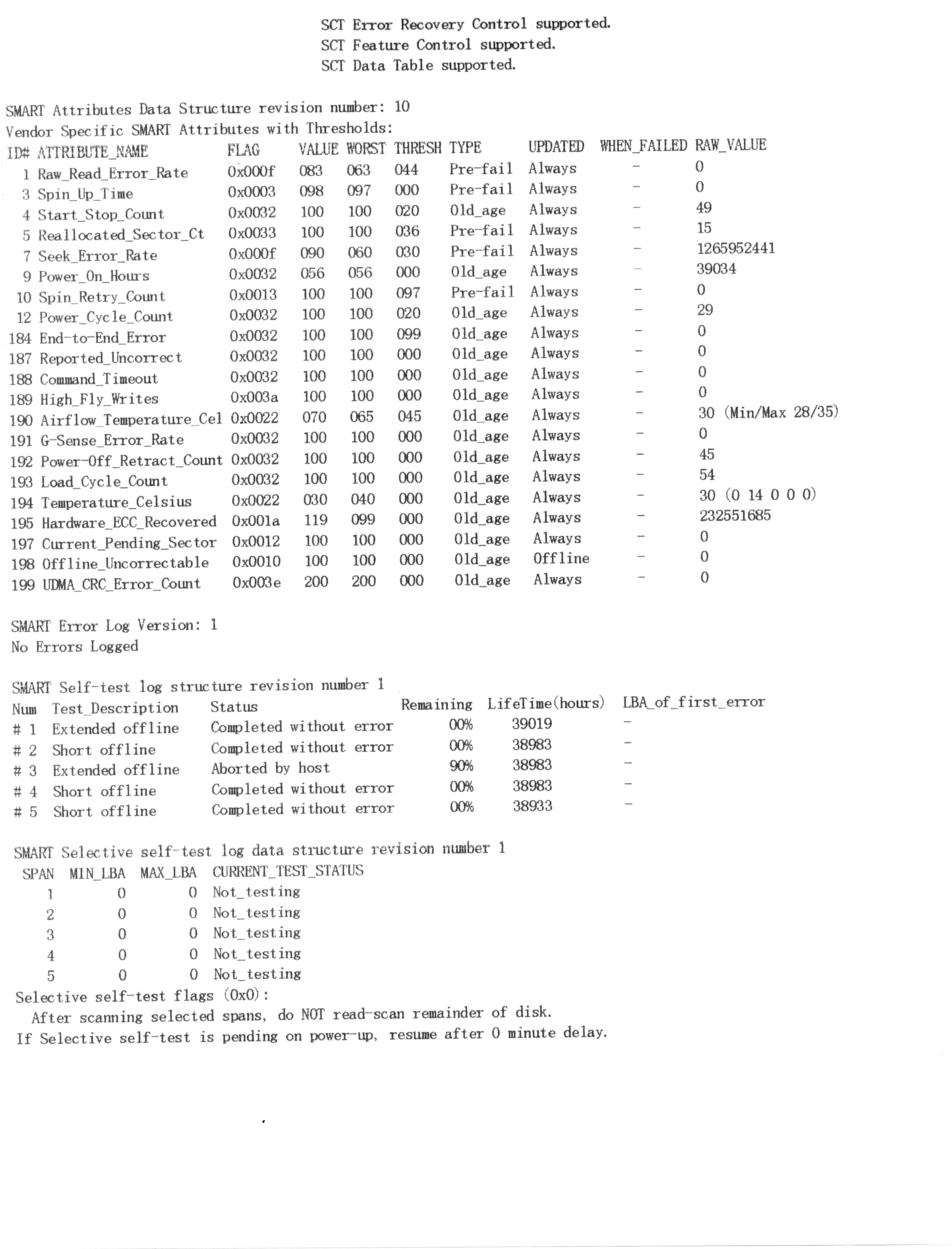
I'd say for basic things like notes about hard drive testing, packing slips. This printer can still do the job in 2026.
Final thoughts.
So, in terms of what it does. It prints black and white for packing ships or other information that you could use for general notation, rather well. In a pinch, it could even make some shipping labels either by using copy paper and then packing tape over it. Or with Avery Labels. However, in graphic mode, it does print SLOW. Each page generally takes about 1-2 minutes to produce. Sure, if your ribbon printer has a manual feed, you could use copy paper like what we're doing now. But that in itself is a bit of a pain, as you have to send over one job at a time. Or else you could get garbage data on the next form feed.
Finally, we're not doing ourselves any favors by running this at 9600baud on a serial connection. Sure, parallel responds better, but it still takes minutes to complete a graphical form like what you've seen above.
In terms of cost. if you get the cartridges at $10, the price is rather affordable to print on! However, since Continuous paper is no longer the de facto standard in the printing world. Getting boxes of it ranges anywhere from $40-100 with shipping, which sends the price of your paper anywhere from 4 cents a copy to 8 cents a copy. Thus, you wouldn't save money by getting a box of continuous feed. You wouldn't save fine using the manual feed.
If a home office where you may be shipping anywhere from 10 to 25 packages a day. Waiting a little bit is fine! But if you're a business that needs to get several thousand units out the door with labels and packing slips going into every box, it would just be too much for a printer like this.
When you compare and contrast printing speed with something more modern like our HP CP2025DN color printer, which is capable of 20 pages per minute with third-party cartridges, bringing the per-copy price down to 8 cents. You quickly see why laser printers decimated the market and ribbon printers are the things of the past, like for us vintage and hobbyists out there.
The same goes for our Zebra Z4M - although made about 4 years later, it's a label printer that can easily make 10-20 labels per minute, even on its slowest setting.
Continuous Feed Paper.
Now, you may ask the question, why haven't we loaded our Okidata 395 with continuous paper? To put it bluntly, we're cheap-asses. Not really feeling like spenting $100+ for a 2000 sheet box from Staples, or Office Depot. Chances are, we will wait until Craigslist when someone finds some paper in their attic or whatever, and use that instead. Or if our Ebay ventures really pick up.. Then great. offloading some of the crap jobs to this ribbon printer means I get to keep the toner in my laser printer that much longer.
Thanks for checking out the blog. Until next time.
Server protect you.
+++ END OF LINE>